Troubleshooting QuickBooks Online Connection Issues with Google Sheets
Last updated: March 16, 2026
If you're experiencing connection issues between QuickBooks Online and Google Sheets in LiveFlow, there are several common causes and solutions to try.
Common Error Messages
You may encounter these error messages:
"LiveFlow: refresh failed – Sorry! We are having trouble refreshing your reports. Please go to the Create Report tab and check your QuickBooks account(s) are connected."
"The Google Sheets API denied your access to the spreadsheet. Please refresh your browser tab and try again."
"Connection failed" with a message to contact your company admin
Admin Permissions Required
If you see a message about contacting your company admin, this means you need admin permissions in QuickBooks Online to connect it to LiveFlow. You have two options:
Ask your company admin to connect QuickBooks to LiveFlow for you
Ask your company admin to make you an admin in QuickBooks so you can connect it yourself
Basic Troubleshooting Steps
Try these solutions in order:
1. Log Out and Back In
Log out of your QuickBooks accounts and log back in. This often resolves temporary connection issues.
2. Use Incognito Mode
Try connecting your QuickBooks company in incognito/private browsing mode to eliminate browser cache issues.
3. Google Account Management
Sign out of all your Google accounts and only sign back into the Gmail account associated with your LiveFlow account. Multiple Google accounts can sometimes cause conflicts.
Advanced Solutions
Change Admin User
If the above steps don't work, you may need to change which admin user is connecting QuickBooks to LiveFlow. This can resolve permission-related issues.
Workspace Setup
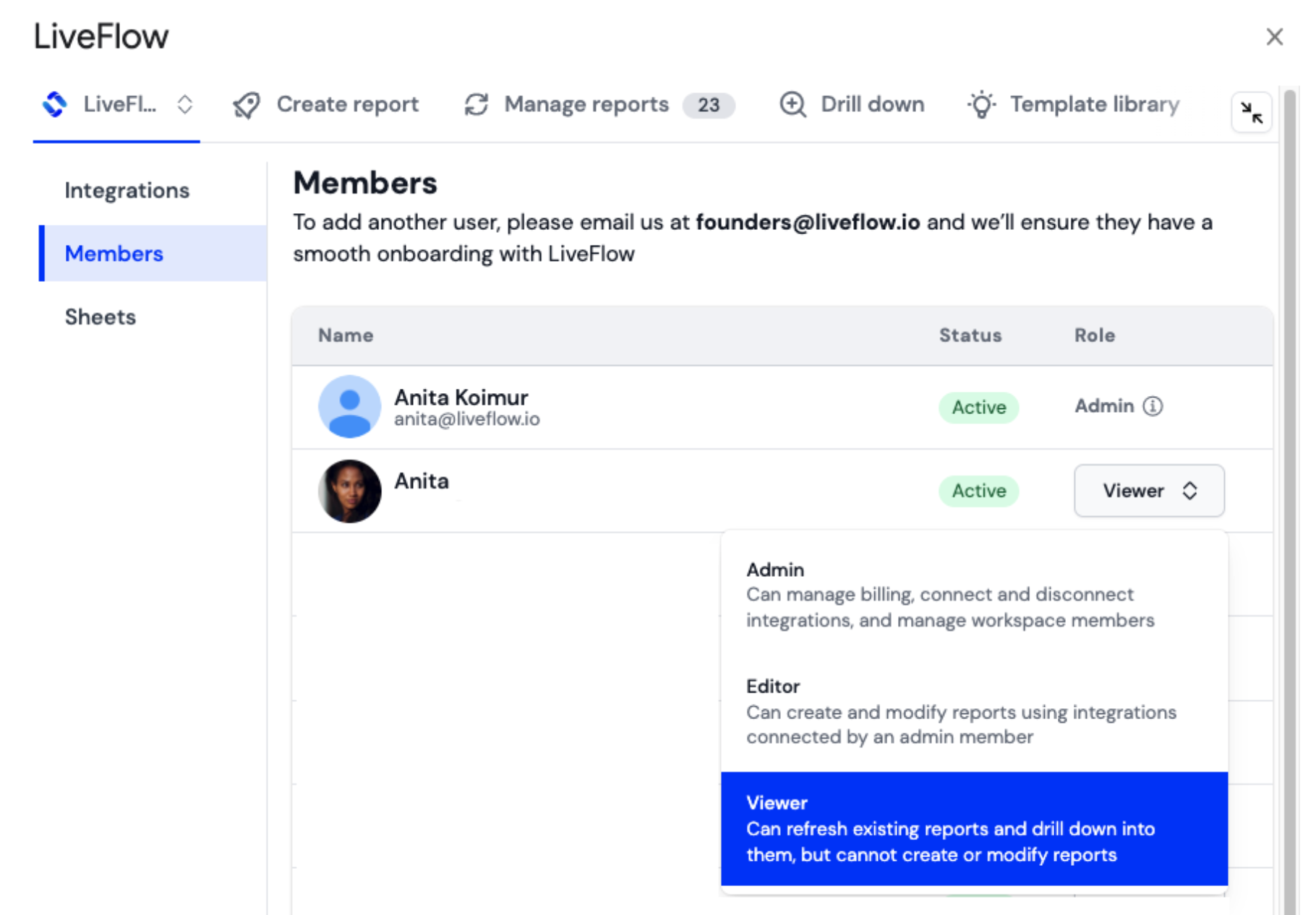
For teams, consider setting up a shared workspace where only one person needs to connect QuickBooks, and all team members can access the reports. You can manage team member access levels through the workspace Members panel.
When to Contact Support
If you've tried all the above solutions and are still experiencing issues, especially if:
You're the only team member experiencing the problem
The error persists even when copying or recreating reports
You continue to see Google Sheets API access errors
Contact LiveFlow support and provide them with editor access to a problematic report so they can investigate further.