How do I see the previous 12 months of data in a LiveFlow report?
Last updated: February 9, 2026
To adjust the date range of your LiveFlow report
Open the LiveFlow Extension and click Create report
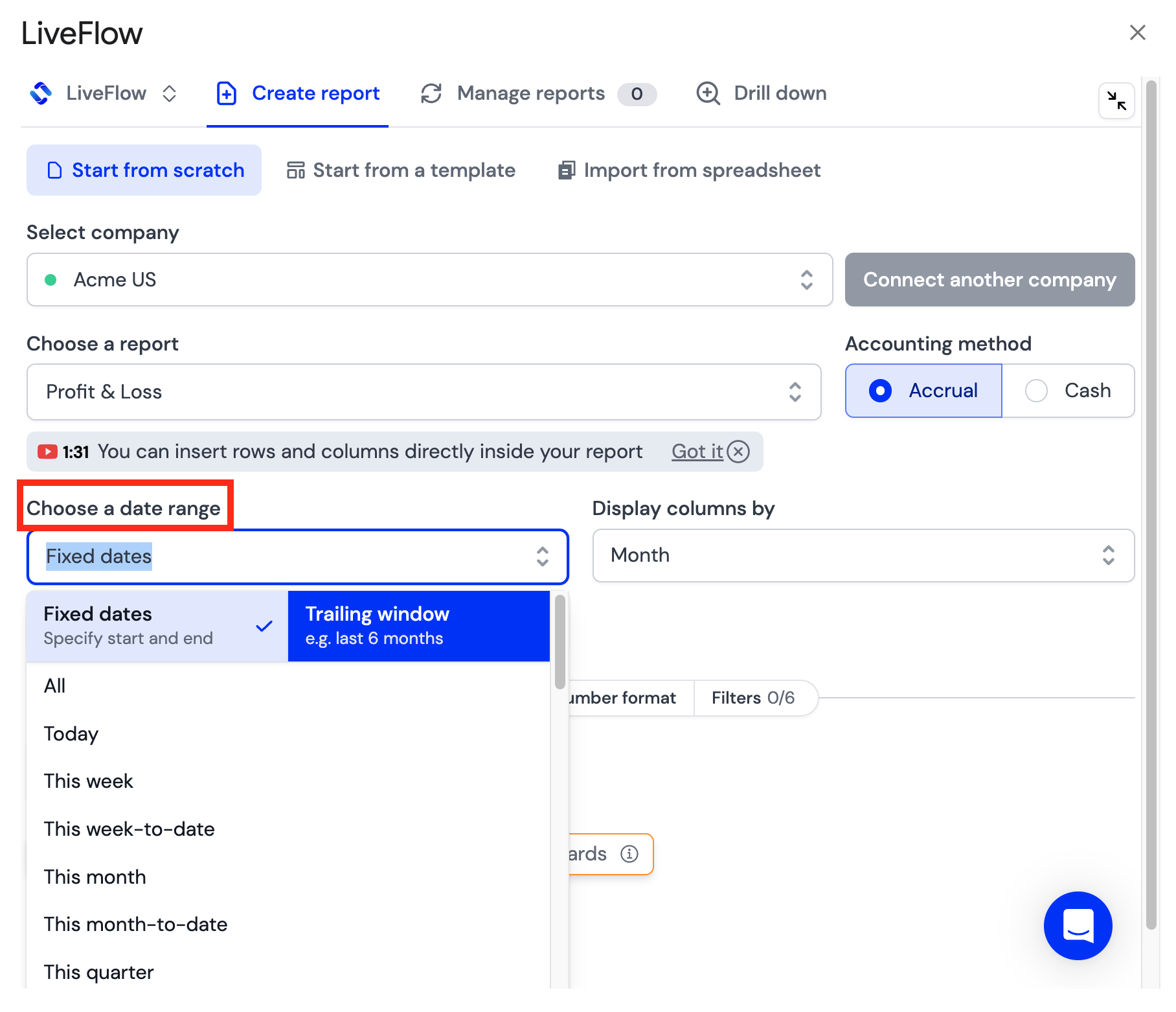
After you Select company and Choose a report, you will be able to Choose a date range
In the Choose a date range dropdown, you will have two options
Fixed dates, where you can specify start and end
Trailing window i.e. last 6 months or last 12 months
To see the previous 12 months of data in your report
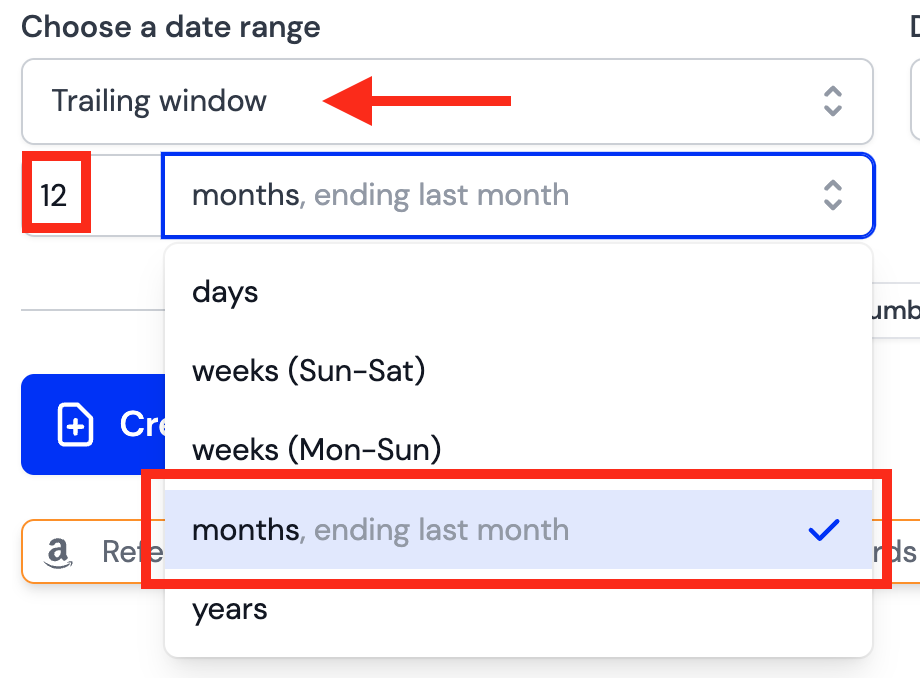
Select Trailing window
Select the number of months you want for the trailing window (12)
In the dropdown, select your time period length (months)
The time period length will always assume the last full time period for whichever length you choose i.e. last month, last week, yesterday