How to include all accounts in your reports
Last updated: June 17, 2026
How to import a Profit & Loss or Balance Sheet report while including all your accounts?
Open a Google Sheet
Open LiveFlow and select a Profit & Loss or Balance Sheet report
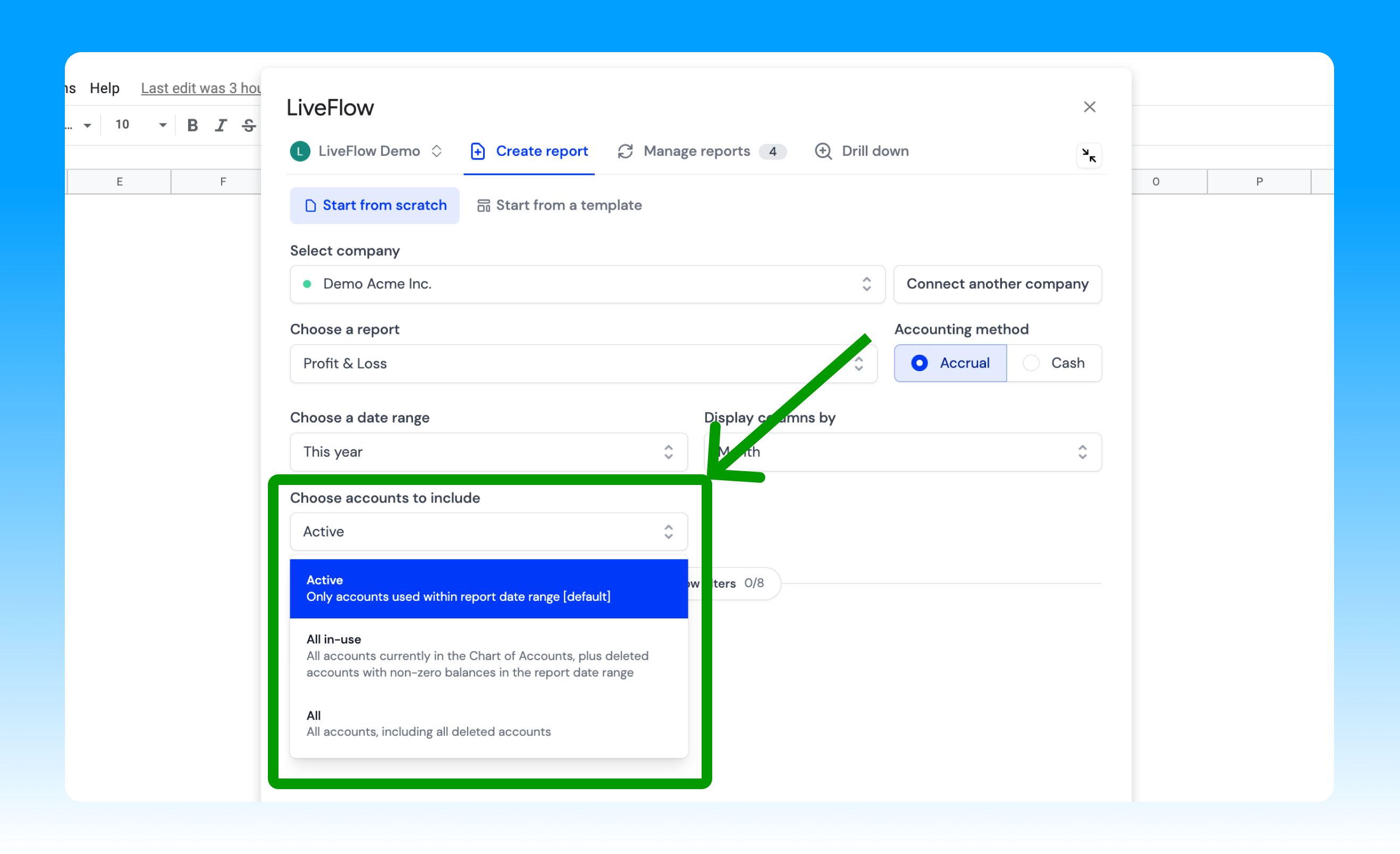
Click on the Choose accounts to include dropdown
Now, select between your three options:
Include only accounts with a balance for the period
Include all accounts, including deleted ones, with a balance for the period
Include all accounts, including all the deleted ones
Will this include new accounts that are added after the report set up?
Yes! Here's how to enable it:
Head over to Manage Reports
Select your existing report
Set the Choose accounts to include setting to either All in-use or All
Click Update Report — note that simply refreshing the page is not enough. You must click Update Report for the changes to take effect.
All your accounts will now be included, and if you create new accounts in QuickBooks they'll be included in your report automatically.
Can I create a report with all accounts (including deleted) that have balances but not show the deleted accounts that have no balances?
Yes! All you have to do is to use the “All in-use” option when Choosing which accounts to include.
Seeing deleted accounts you didn't expect?
If deleted accounts are showing up in your report unexpectedly, click Update Report in the LiveFlow sidebar. Refreshing the page alone will not remove them — Update Report is required.
Got feedback on how we can improve? Ping us at help@liveflow.io, and we'll be in touch!